Administrators manage access to Tabulate through the Admin Console using a combination of Profiles and User Types. Profiles control the different authoring workflows and apps that Pro and Analyst users can access. Different profiles are defined and then applied at either the role level or user level.
With the combination of User Types and Profiles, Admins can manage who can access Tabulate Lite (the streamlined toolset for non-technical users) or Tabulate Pro (the full Tabulate toolset, typically with all sophisticated features enabled).
Tabulate Profile options
The following settings are associated specifically with the Tabulate apps:
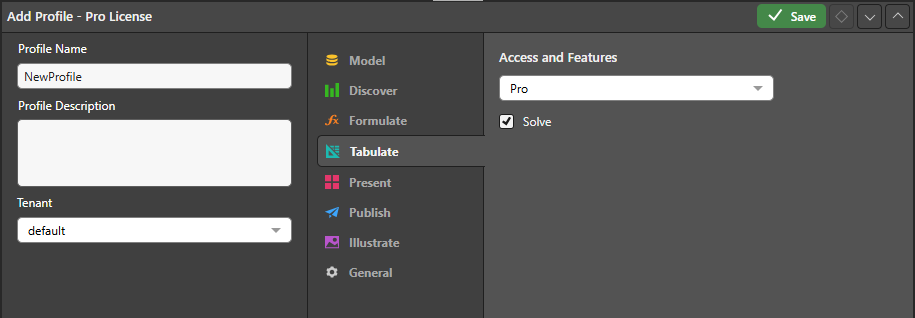
Access and Features
Access
- If a Pro user is assigned a profile with Pro access enabled, then the Tabulate Pro interface is shown automatically whenever they open Tabulate.
- If a Pro or Analyst user is assigned a profile with Lite access enabled, then the Tabulate Lite interface is shown automatically whenever they open Tabulate.
Features
- Solve: Allows Tabulate Pro users to also access Solve. Note: Solve is accessed from the Advanced ribbon in Tabulate.
Tip: If you require access to Tabulate, contact your Administrator.
Related information
Creating a Profile
When creating a profile, administrators define a set of access and feature settings for each app that users with that profile should be granted when they log in to Pyramid. These settings define whether the users are granted access to the Lite or Pro app (or neither) and specify any profile-controlled features for each of the apps.
For instructions describing how to create profiles for different types of users, including details of the Access and Features options for each of the apps, see:
Note: Viewer users cannot access Tabulate.